Nafeesa Parveen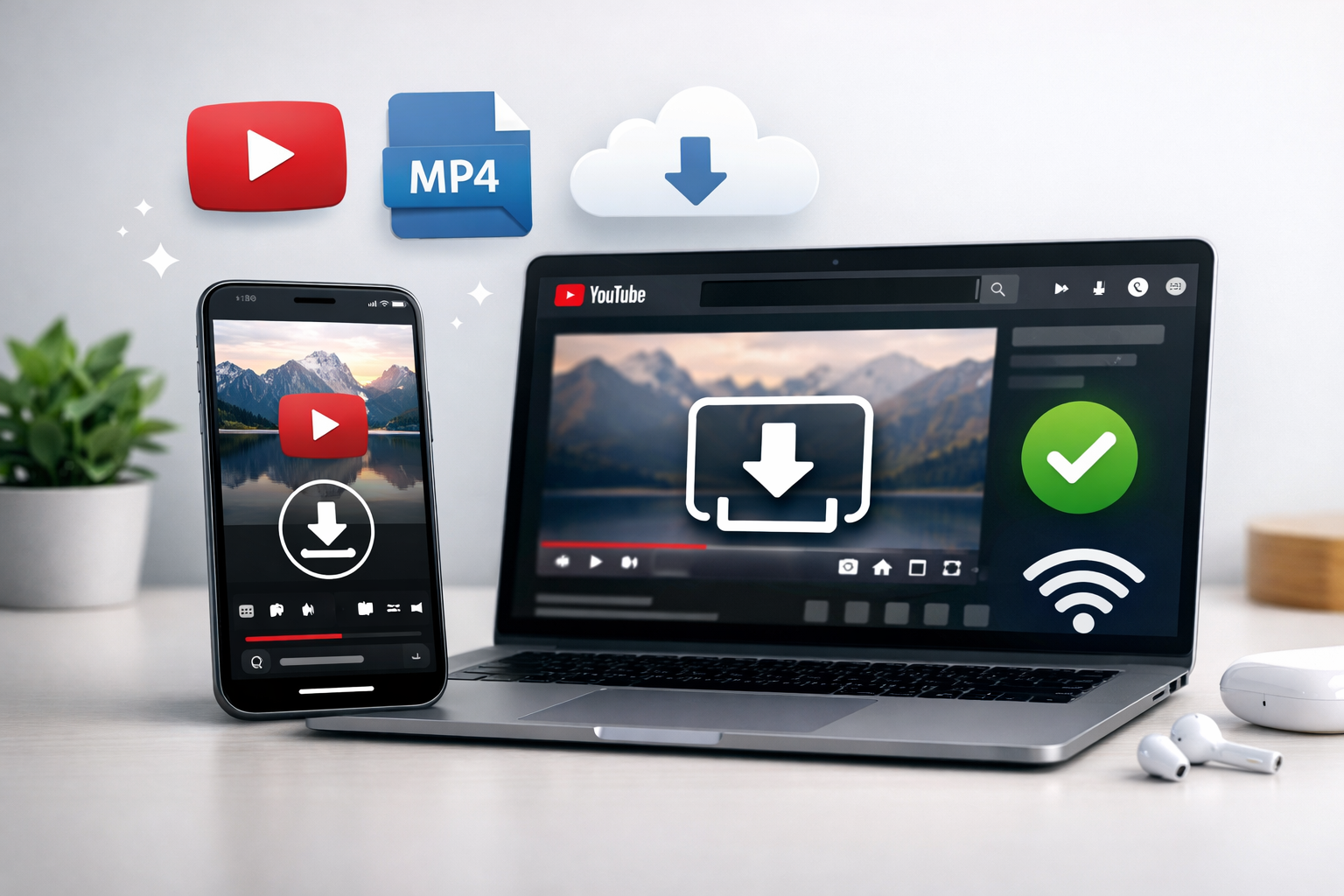
Learn how to download YouTube videos on mobile and PC for offline viewing using simple and safe methods.
How to Download YouTube Video Easily on Mobile & PC
YouTube is one of the most popular video-sharing platforms in the world. With millions of videos uploaded daily, it’s a goldmine for educational content, entertainment, tutorials, music, and much more. Sometimes, you might want to watch your favorite videos offline, save them for later, or share them without an internet connection. This is where downloading YouTube videos comes in handy.
In this blog, we will guide you step by step on how to download YouTube videos easily on both mobile and PC, along with tips for safety, legality, and the best tools to use.
Why Download YouTube Videos?
Downloading YouTube videos can be useful in many scenarios :- How to Download YouTube Video
-
Offline Viewing – Watch your favorite videos without relying on an internet connection, especially useful while traveling or in areas with poor connectivity.
-
Educational Purposes – Save tutorials, lectures, and courses for offline learning.
-
Content Sharing – Easily share videos with friends or on other platforms.
-
Archiving – Keep a personal collection of videos that might be deleted or made private later.
-
No Ads – Enjoy videos without interruptions when watching offline.
⚠️ Note: Always respect copyright laws and YouTube’s terms of service. Downloading videos for personal use is generally acceptable, but distributing or reposting copyrighted content without permission is illegal.
Methods to Download YouTube Videos on Mobile – How to Download YouTube Video
Downloading YouTube videos on mobile can be done using the official YouTube app, third-party apps, or online websites. Let’s explore each method.
1. Using YouTube’s Official App (Offline Mode)
YouTube itself provides a feature to download videos for offline viewing, but this is only available in certain countries and requires the YouTube Premium subscription.
Steps:
Open the YouTube app on your mobile.
Search for the video you want to download.
Tap the Download button below the video.
Choose the video quality (High, Medium, Low).
Tap OK, and the video will be saved in the Library > Downloads section.
Pros:
Safe and legal.
Supports high-quality video downloads.
Cons:
Requires YouTube Premium subscription.
Videos can only be watched within the app.
2. Using Third-Party Apps
If you don’t have YouTube Premium, there are third-party apps that allow downloading videos. Popular apps include:
VidMate (Android)
SnapTube (Android)
InsTube (Android)
Steps using SnapTube:
Download and install SnapTube from the official website.
Open SnapTube and search for the YouTube video.
Tap the Download button and select video resolution.
The video will be saved in your phone gallery.
Pros:
Free to use.
Offers multiple download formats and resolutions.
Cons:
Not available on Google Play Store due to policy restrictions.
Risk of ads or malware; always download from official sources.
3. Using Online Websites
You can also download videos directly from your mobile browser without installing apps. Popular websites include:
y2mate.com
savefrom.net
keepvid.pro
Steps:
Open the website in your mobile browser.
Copy the YouTube video link.
Paste it on the website’s input field.
Select the video quality and format (MP4, 720p, etc.).
Tap Download.
Pros:
No app installation required.
Works on Android and iPhone.
How to Start Amazon Affiliate Marketing in 2026: Step-by-Step Beginner Guide
Amazon affiliate marketing is one of the easiest and most trusted ways to make money online in 2026 start amazon affiliate marketing in 2026. If you are a beginner and want to earn passive income without creating your own product, the Amazon Associates Program is a great place to start.
Methods to Download YouTube Videos on PC & How to Download YouTube Video
Downloading videos on a computer offers more flexibility and larger storage options. You can use websites, software, or browser extensions.
1. Using Online YouTube Downloaders
Several websites let you download YouTube videos directly on your PC.
Steps using y2mate.com:
Open YouTube and copy the video URL.
Visit y2mate.com in your browser.
Paste the link in the input field.
Choose video resolution or audio-only format.
Click Download and save the file to your PC.
Pros:
Quick and easy.
No software installation needed.
Cons:
Ads and pop-ups can be distracting.
Large videos may take longer to download.
2. Using Desktop Software
For more control and higher speed, desktop software is highly recommended. Popular tools include: How to Download YouTube Video
4K Video Downloader (Windows, Mac, Linux)
YTD Video Downloader
Freemake Video Downloader
Steps using 4K Video Downloader:
Download and install 4K Video Downloader.
Open YouTube and copy the video URL.
Open 4K Video Downloader and click Paste Link.
Choose the format and quality (MP4, MKV, 1080p, etc.).
Click Download.
Pros:
Supports playlists and channels.
High-quality downloads.
No pop-up ads.
Cons:
Software installation required.
3. Using Browser Extensions
You can also download YouTube videos using browser add-ons like :- How to Download YouTube Video
Video Download Helper (Chrome, Firefox)
Easy YouTube Video Downloader
Steps:
Install the extension in your browser.
Open the YouTube video.
Click the extension icon and select download options.
Save the video to your PC.
Pros:
Fast and convenient.
Works directly from YouTube page.
Cons:
Extensions may stop working due to browser updates.
Some may require payment for full features.
Tips for Safe and Efficient Downloads – How to Download YouTube Video
Avoid pirated or shady apps – Always use trusted websites or official apps.
Check video resolution – Choose the quality that suits your device storage.
Use antivirus software – Protect your device from malware during downloads.
Prefer MP4 format – It’s widely compatible with all devices.
Use download managers – For faster downloads, especially for large files.
Keep YouTube Premium in mind – If you frequently download videos, it’s legal and convenient.
Frequently Asked Questions (FAQs) – How to Download YouTube Video
Q1. Is it legal to download YouTube videos?
A1. Downloading videos for personal offline use is generally allowed, but redistributing copyrighted videos is illegal.Q2. Can I download YouTube videos on iPhone?
A2. Yes, using the YouTube app (Premium), or online services compatible with Safari.Q3. Which format is best for downloading YouTube videos?
A3. MP4 is recommended for high compatibility and quality.Q4. How to Download YouTube Video playlists?
A4. Use software like 4K Video Downloader, which supports full playlist downloads.Conclusion
How to Download YouTube Video is easier than ever, whether you use your mobile device or PC. From the official YouTube app to third-party apps, online websites, and desktop software, there’s a method for everyone.
By following the steps mentioned in this guide, you can:
Watch videos offline.
Save your favorite content for later.
Ensure a safe and high-quality download.
How to Download YouTube Video Remember to always respect copyright laws and use downloaded videos for personal and educational purposes. Whether you are a student, professional, or just a YouTube enthusiast, having your favorite videos accessible offline can make your digital life more convenient.
Start downloading today and enjoy your favorite YouTube videos anytime, anywhere!

About the Author


 Vishal Ma